
Google Workspace
Google Workspace Essentials Starter is a free plan offering teams within an organization access to Google Drive, Google Docs, Google Chat and Google Meet.
For organizations and schools, Google provides a range of Workspace options, almost all of which need a paid membership. However, you may just require Google Drive, Google Docs, and other tools for a single team or project inside your firm, rather than a full Google Workspace package. In that case, you may join up for Workspace Essentials Starter, a free option.
This plan includes Google Drive, Google Docs, Google Sheets, and Google Slides, as well as Google Chat and Google Meet for up to 25 employees. Because it works with your existing business email address, the package does not include Gmail. Each user has access to 15 GB of storage across all services, as well as team conversations, meetings, and shared files.
A corporate email account is required, but you do not need to own or administer a domain. You can add up to 24 other users with addresses in the same domain after you join up using your own email address.
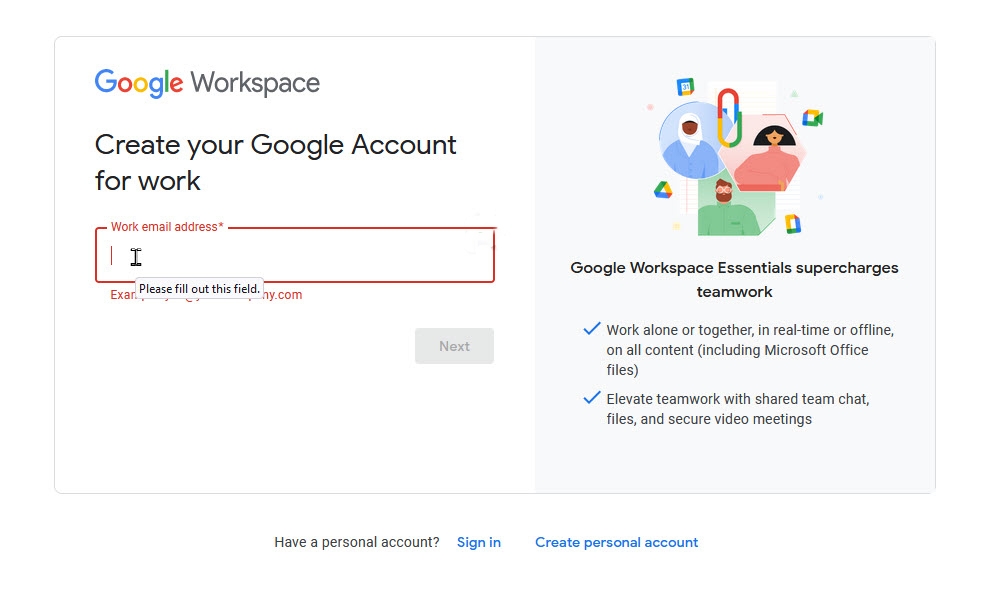
Go to the Google Workspace sign-up page. Fill up the appropriate section with your company’s email address. Next should be selected (Figure A).
Figure A
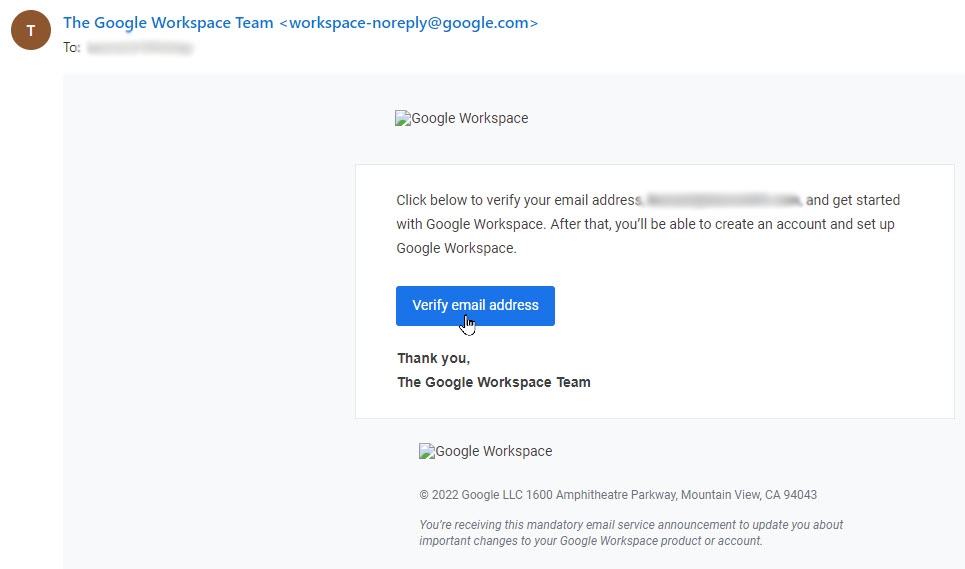
You’re told that you’ll receive a verification email. Sign into your email account, open the email and click the button for Verify Email Address (Figure B).
Figure B
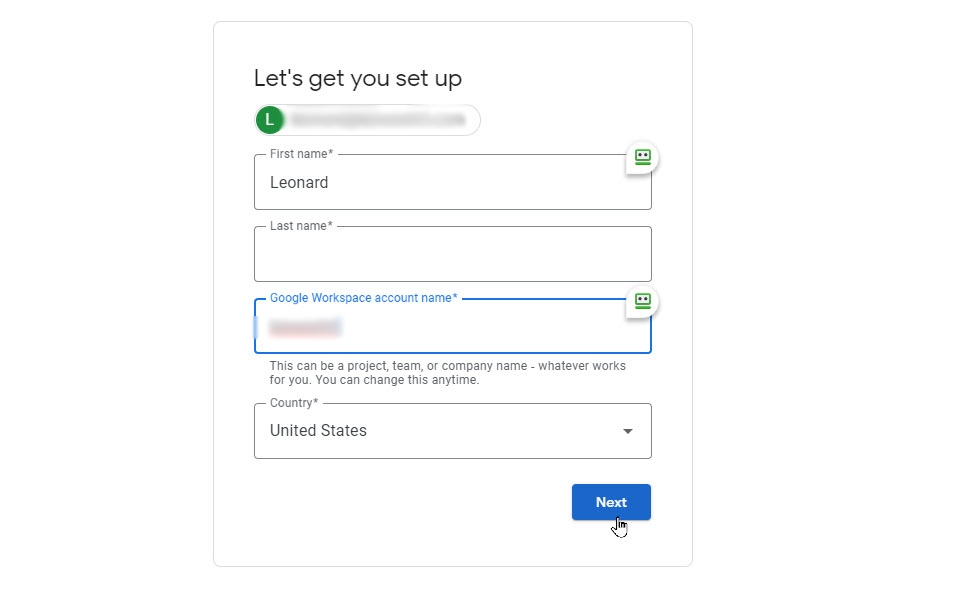
At the Google Workspace page, type your first and last name. Create a Google Workspace account name, which can refer to a team, department, project or other resource within your organization. Click Next (Figure C).
Figure C
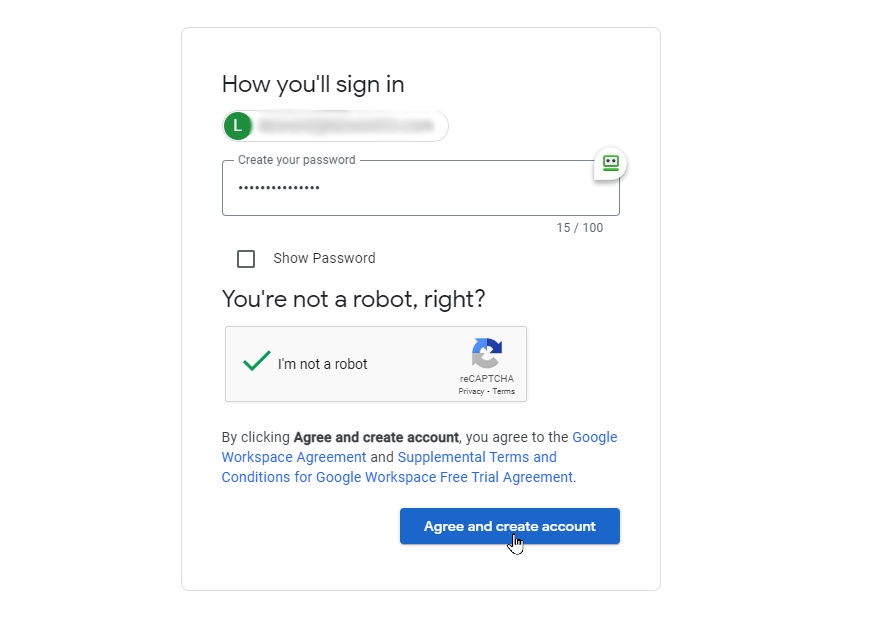
At the next screen, create the password to sign into your workspace. Check the box to indicate that you’re not a robot and then click the button for Agree And Create Account (Figure D).
Figure D
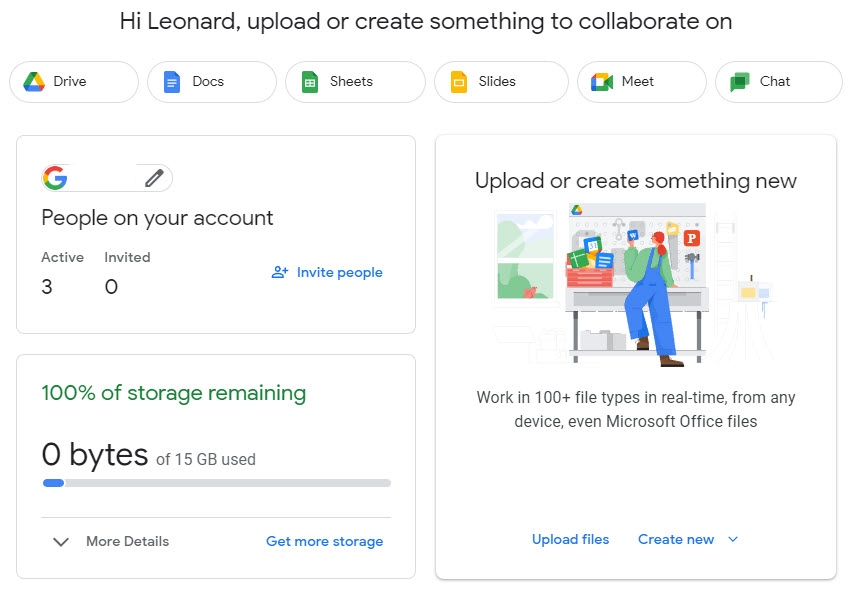
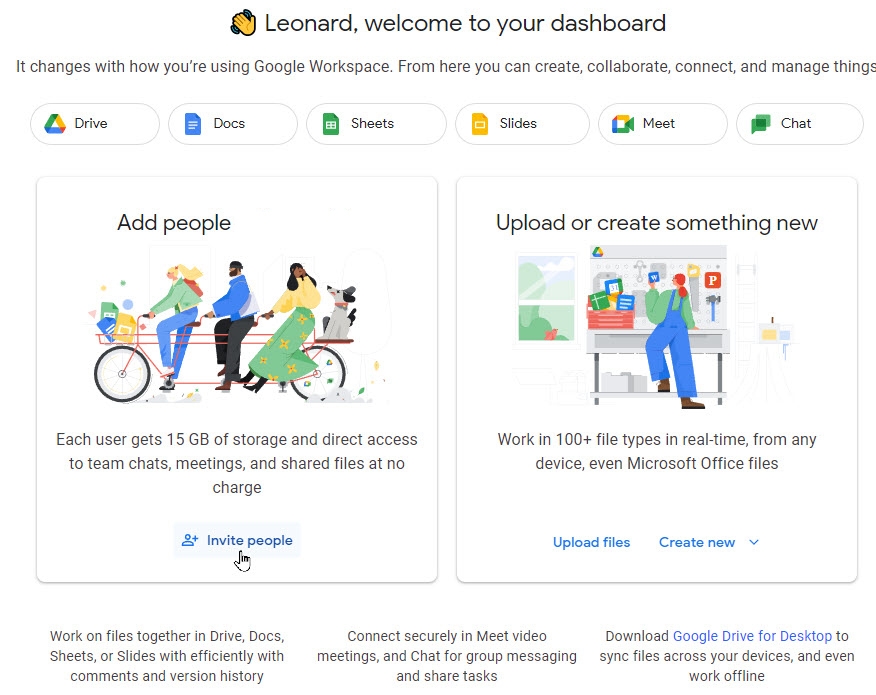
You’re taken to your Google Workspace dashboard page where you can access the different features. To invite other colleagues, click the button for Invite People (Figure E).
Figure E
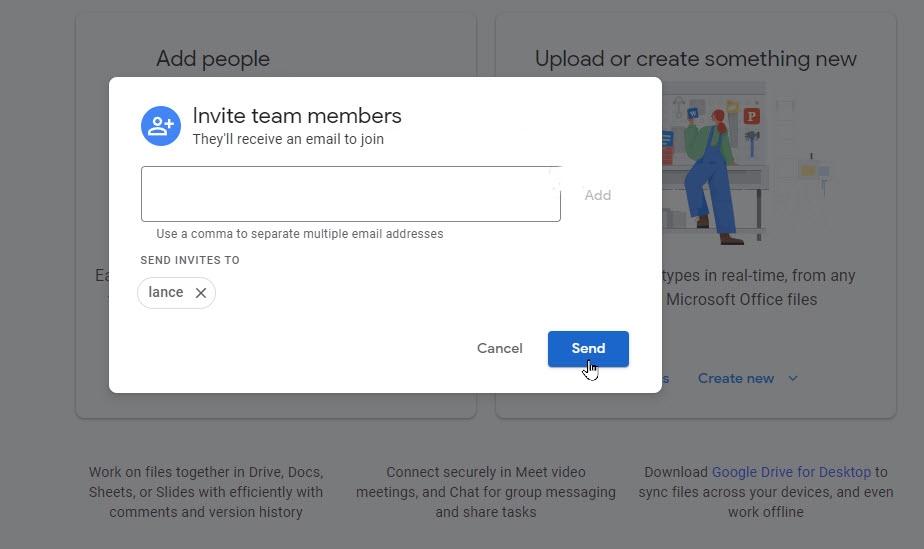
At the next window, enter the person’s email address. You can enter multiple email addresses, each one separated by a semicolon. Click Add and then click Send (Figure F).
Figure F
 ‘
‘
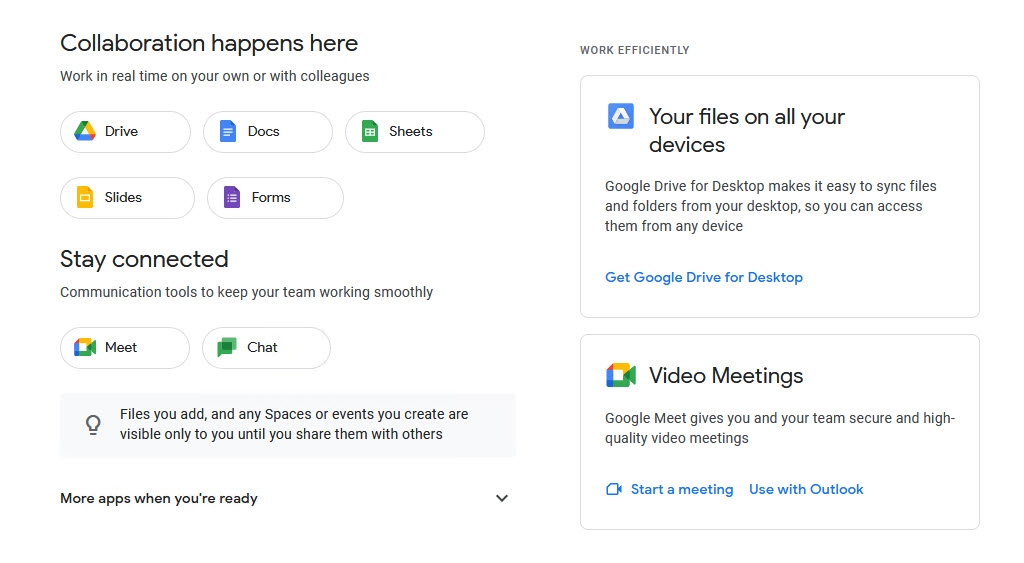
The person accepts the invitation through email and is prompted to create an account with their name and password. After signing in, they’re placed at the Dashboard (Figure G).
Figure G
As the person who initially set up the Google Workspace account, you’re the sole administrator, so you can manage other users. Click the entry for People on the left to see all the users of the plan. Click the three-dot icon for a specific user to trigger a menu from which you can change their role or remove them entirely (Figure H).
Figure H
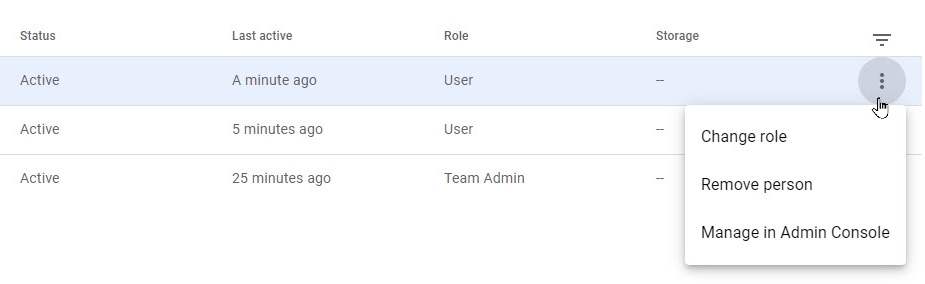
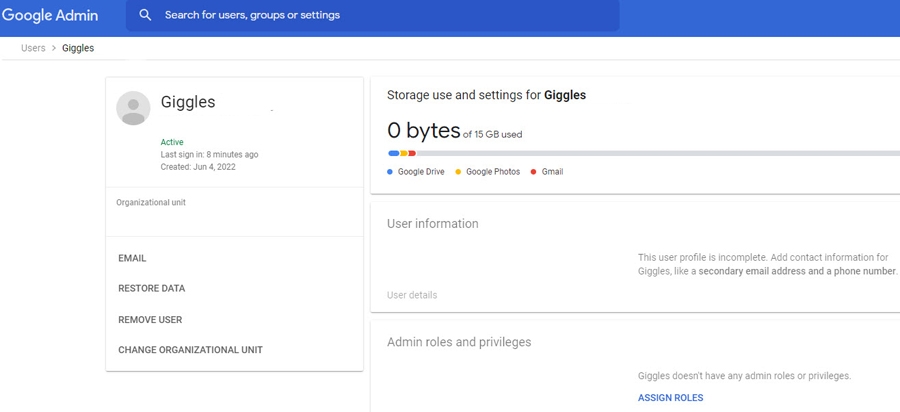
Click the menu entry for Manage In Admin Console. This takes you to a dedicated console where you can see how they’ve used the plan, email them, restore deleted data from their Google Drive, remove them or move them to a different workspace (Figure I).
Figure I
Now, it’s just a matter of all of you using the different features of the Google Workspace account. From the Dashboard, you can directly access Google Drive, Google Docs, Google Sheets, Google Slides, Google Meet and Google Chat. You can also upload files and create new files (Figure J).
Figure J